Best AI Note-Taking Workflows for Lectures and Meetings
Turn lectures, meetings, and documents into summaries automatically. Learn the best AI note-taking workflows in one place with NoteBase.
Furkan Uzun · Published · 6 min read

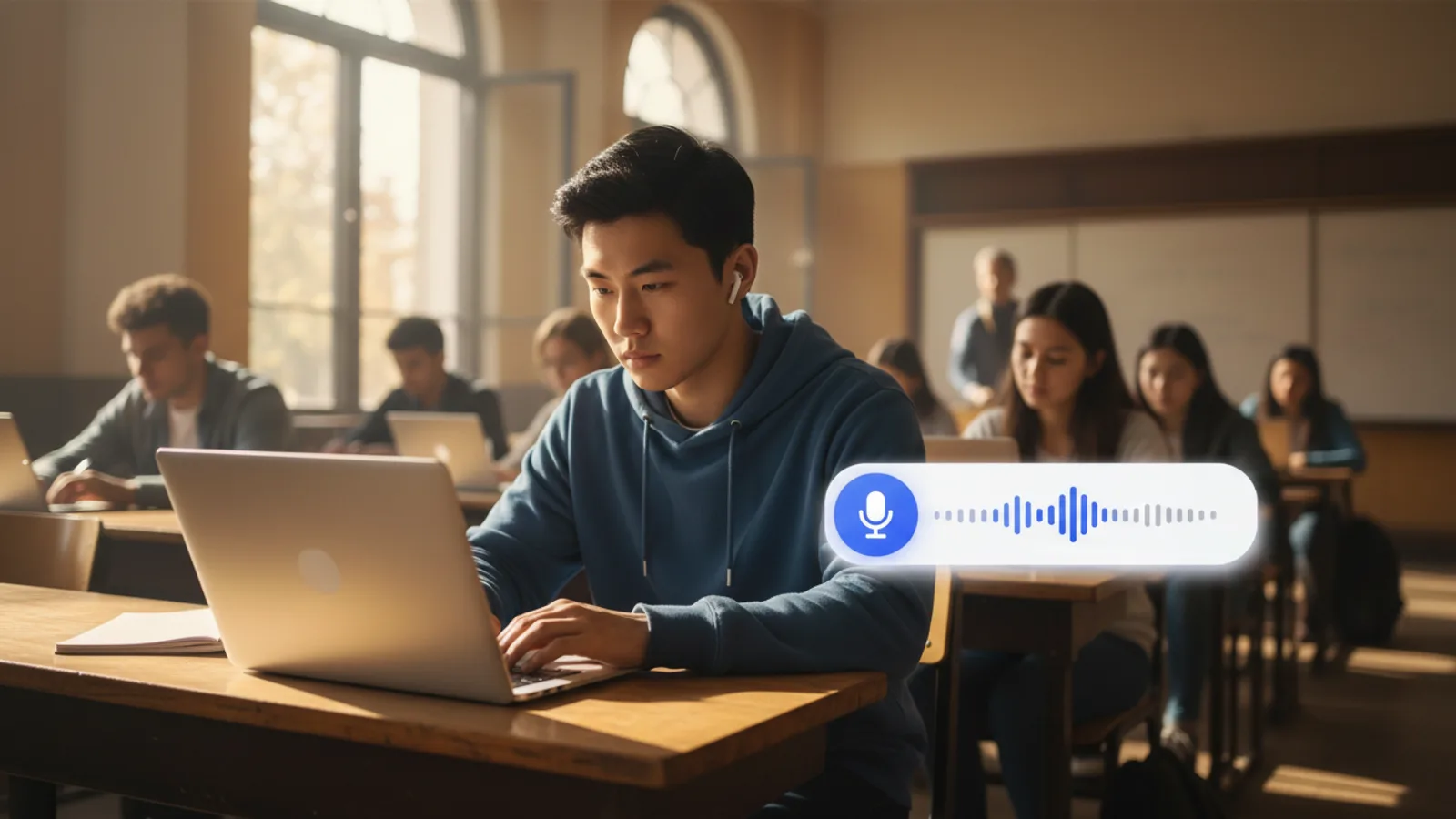
AI note-taking tools capture audio, video, and documents, then transcribe, summarize, and structure them into searchable notes, flashcards, and action items. NoteBase handles every format in one workspace, so your lectures, meetings, and reading all feed into the same knowledge base.
AI note-taking tools turn raw audio, video, and documents into structured, searchable notes automatically. With the right workflow, you can walk out of a lecture or meeting with a summary, flashcards, and action items ready before you close your laptop. NoteBase is an all-in-one AI workspace that handles every format in one place, so you spend less time organizing and more time using your knowledge.
What Does an AI Note-Taking Workflow Do?
A modern AI note-taking workflow moves through four stages: capture, transcription, summary, and follow-up. Research from Laxis confirms that a mistake at any early stage gets copied into everything after it, which is why clean capture and careful transcript review matter most.
NoteBase handles all four stages for live audio, uploaded files, YouTube videos, PDFs, scanned images, and handwritten notes. You feed in raw material and the AI returns structured notes, speaker-tagged transcripts, summaries, and action items in one place.
How to Capture Any Format in One Place
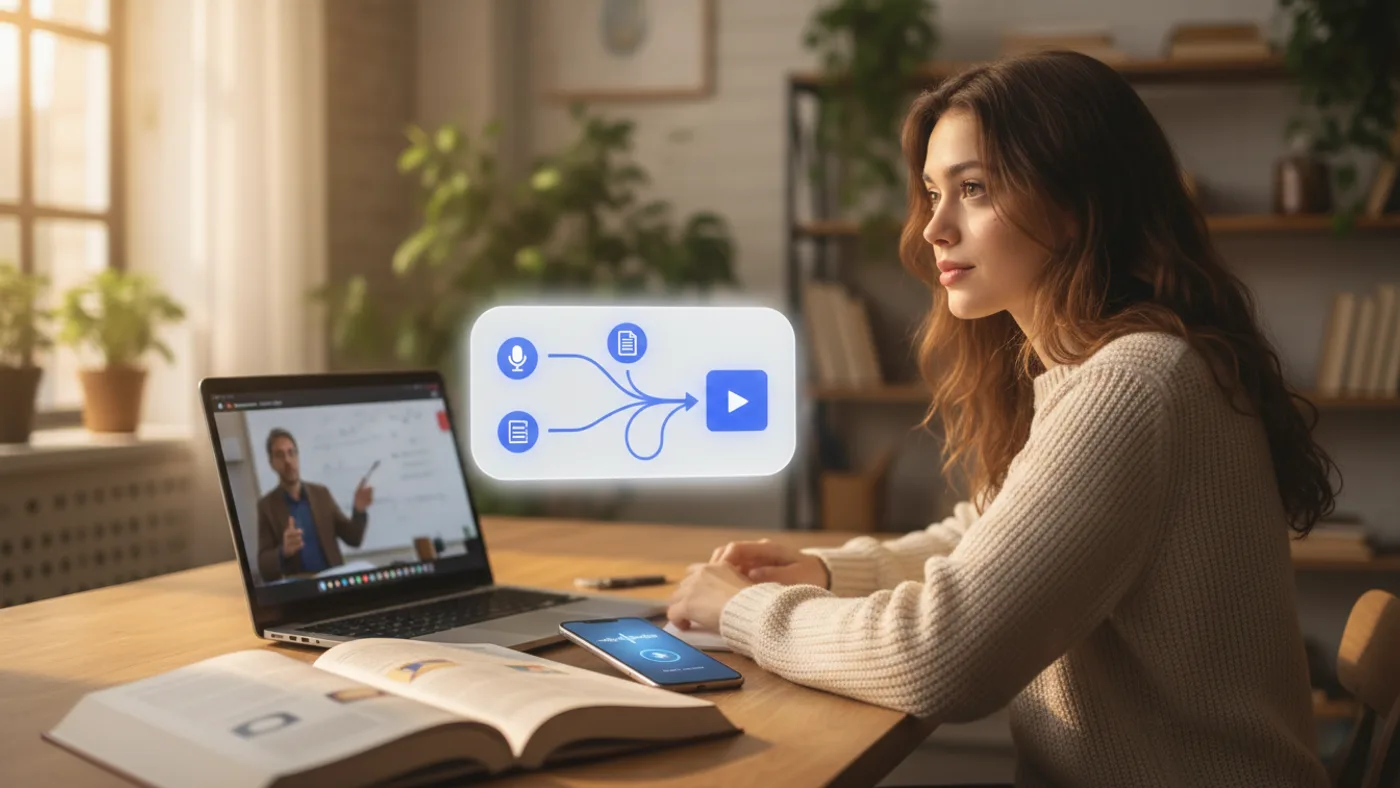
The best AI note systems accept every content type you encounter in a day. Research from Mindgrasp confirms that a true AI notes generator handles text documents, PDFs, video or audio files, YouTube links, and live microphone captures all from one place.
In NoteBase, your dashboard gives you six capture options at once: Record Voice, Upload Audio File, Upload Image, YouTube URL, Upload Document, and Copy and Paste Text. You pick the format that fits the moment.
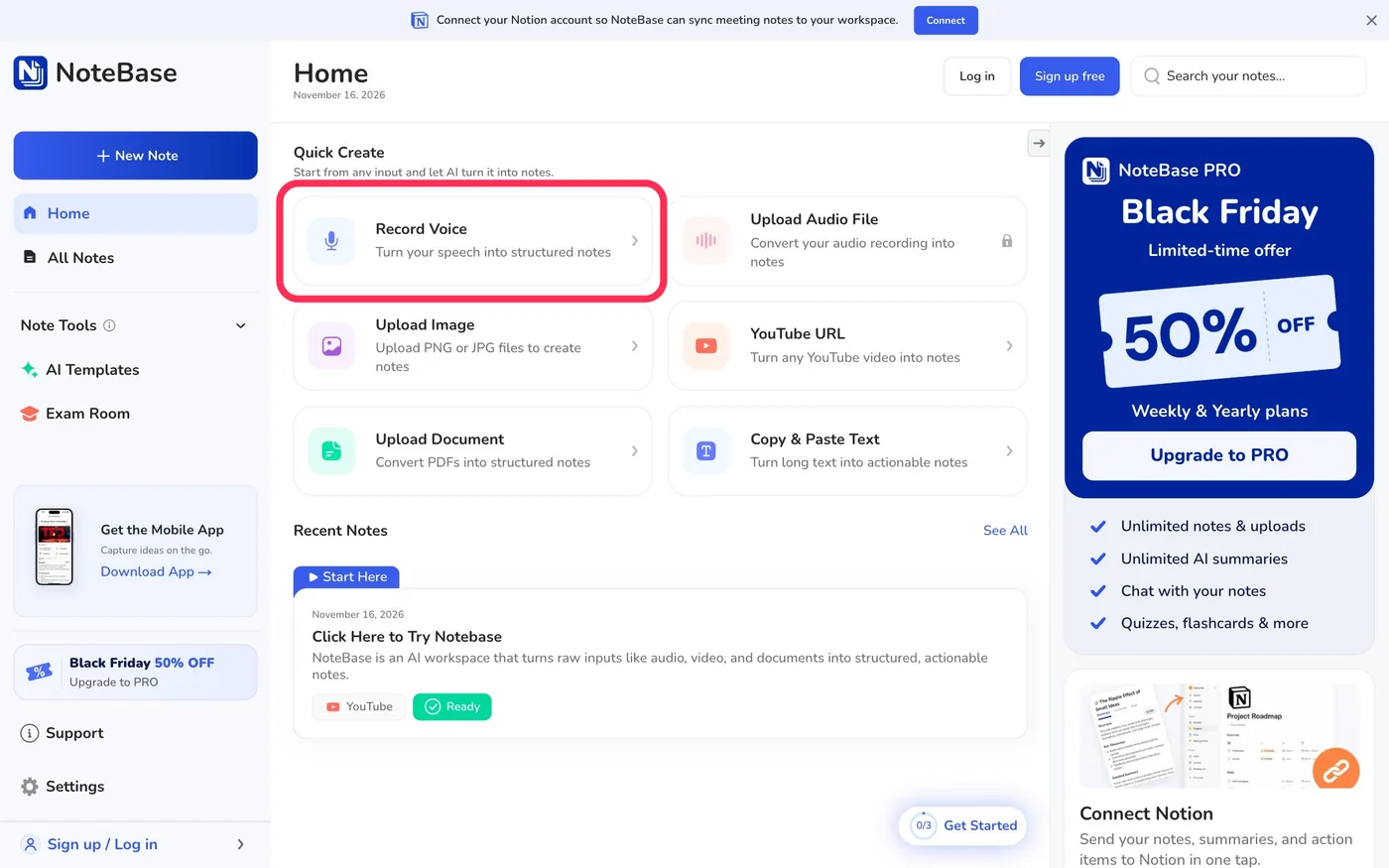
The Multilingual Voice Recorder works in-browser or on mobile and transcribes in over 100 languages, with speaker tags and timestamps on every line. Upload existing files in MP3, M4A, WAV, or AAC format when you recorded elsewhere.
For documents, PDF and image OCR extracts text from PDFs, DOC and DOCX files, and even photos of handwritten pages or whiteboards, preserving headings, bullet lists, tables, and formulas as editable Markdown.
The YouTube Video Summarizer converts any public YouTube link into a timestamped transcript, clickable chapters, and a summary. Research on video learning tools shows that clickable timestamps let you jump straight back to the exact moment in a recording, which is how NoteBase organizes every YouTube chapter it generates.
Can AI Note-Takers Work Without a Bot Joining Your Call?
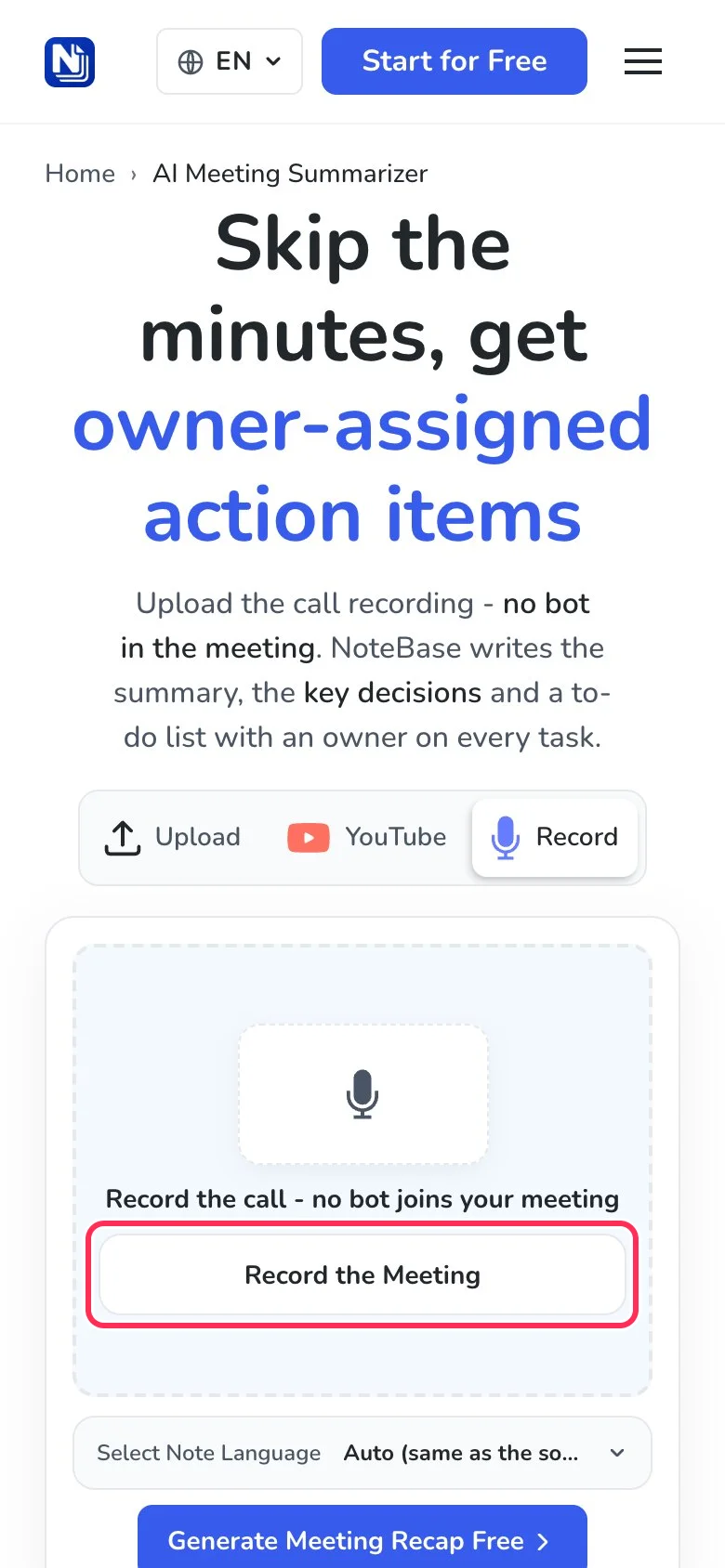
Yes, and this matters. NoteBase does not send a live bot into your meetings. You record the call yourself through your browser or mobile device, or upload the audio file afterward. The AI Meeting Summarizer then generates an executive summary, key decisions, and owner-assigned action items with deadlines from your recording.
This keeps your calls free from third-party bots while still giving you a complete, structured record. Pro plan users can upload audio in MP3, M4A, WAV, or AAC format.
How to Turn Recordings into Flashcards and Action Items
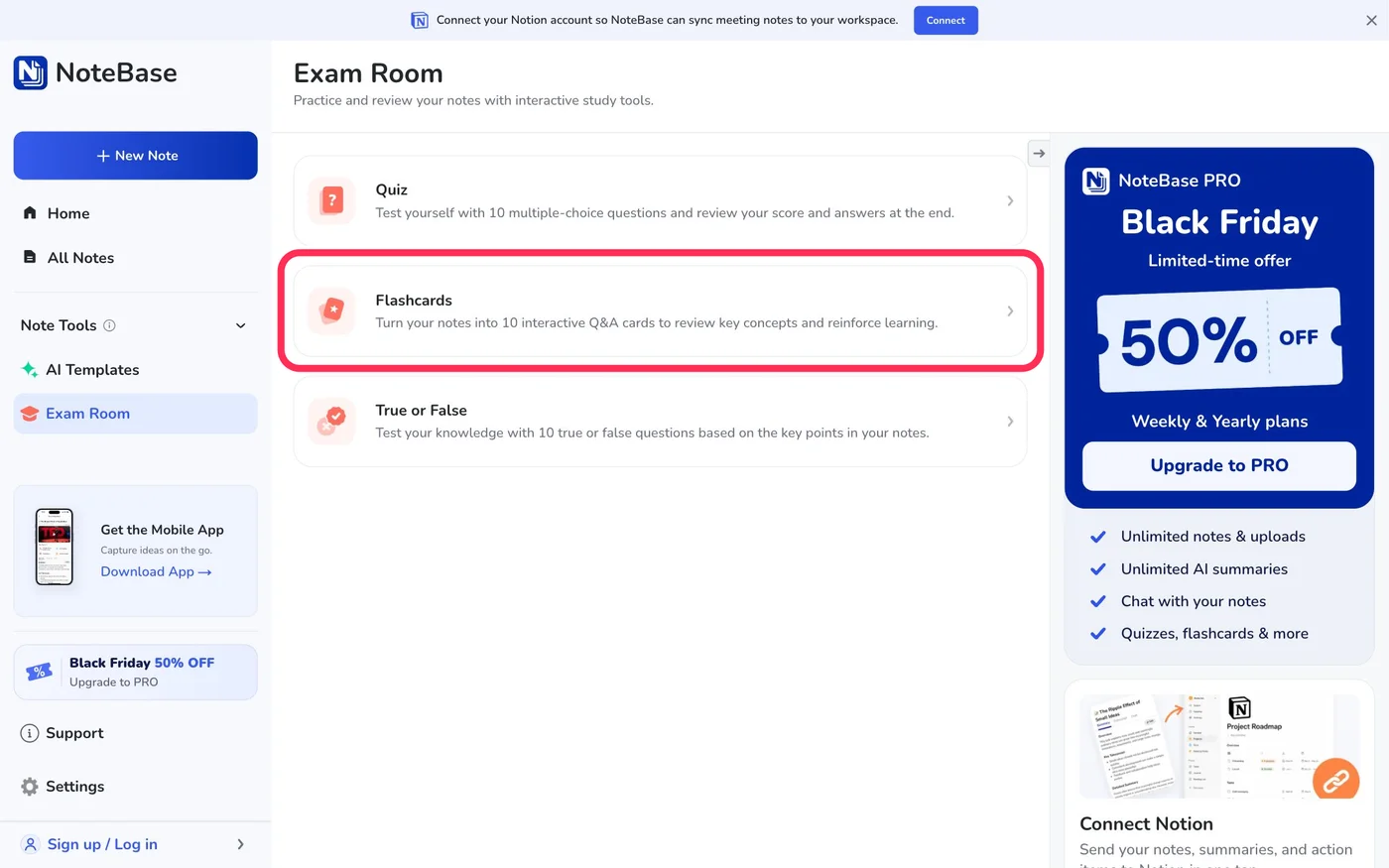
This is where an AI workflow pays off most. After transcribing a lecture or meeting, NoteBase can generate active-recall flashcards, multiple-choice quizzes, and true/false questions from the same note.
Research from Evernote confirms that AI can create question-and-answer flashcard pairs from notes, adjust them for difficulty, and export them for spaced repetition practice. In NoteBase, the AI Study Suite and Exam Room repeats incorrectly answered flashcards more often, so your weak spots get extra attention automatically.
For meetings, the AI produces owner-assigned action items with deadlines. Push those directly to your Notion workspace with Notion Sync, keeping tasks and notes together without manual copy-pasting.
Set Up Your NoteBase AI Workflow Step by Step
Here is exactly how to build a complete AI knowledge base in NoteBase, whatever your material looks like.
Step 1: Choose your input. From the NoteBase dashboard, pick the Quick Create option that matches your content. Record voice for live lectures or meetings. Upload an audio file if you recorded elsewhere. Paste a YouTube URL for video content. Upload a PDF or document for reading material.
Step 2: Set your language. Use the Select Note Language dropdown to choose the output language. NoteBase supports over 100 languages, so a French lecture can produce English summaries.
Step 3: Generate your notes. Hit Generate and NoteBase returns a structured note in seconds. For audio, you get a speaker-tagged, timestamped transcript. For PDFs, you get editable Markdown with preserved formatting. For YouTube, you get chapters, a summary, and timestamps.
Step 4: Apply a template. Use the AI Templates tool inside your note to apply a Meeting Summary, Action Items, Executive Summary, or SWOT Analysis format. This shapes raw content into the structure you need.
Step 5: Study or act. Open the Exam Room to create flashcards, quizzes, or true/false questions from your note. Or send the note and its action items to Notion with one click.
Step 6: Chat with your content. Use the AI Chat panel to ask questions about any note and get answers with timestamp references, so you can jump straight to the source moment in your recording.
This workflow works whether you are a student summarizing a lecture, a team member capturing decisions, or a professional turning research into study cards.
Best Practices to Avoid Transcription and Summary Errors
Because AI workflows chain from capture to summary, a poor-quality recording creates problems throughout. These practices keep your notes accurate.
Record in a quiet environment. Background noise reduces transcription quality. Clear audio produces cleaner transcripts and, as a result, more accurate summaries.
Use AI Templates to structure your output. Templates like Meeting Summary and Action Items give the AI clear formatting targets, so important points are less likely to be missed.
For meeting notes from a recording, upload the highest-quality audio file available. NoteBase accepts MP3, M4A, WAV, and AAC on the Pro plan.
How AI Keeps Your Knowledge Searchable Over Time
After generating notes, NoteBase stores everything in a searchable library. You can find and browse your material from the All Notes view. The AI Chat panel lets you ask questions about any note with timestamp references.
When you use a multi-meeting AI chat system, you can treat your entire database of interactions as one collective source of knowledge. Research confirms that treating your meeting history as a single searchable database lets teams ask conversational questions about trends, follow-ups, and unresolved issues spanning months. While NoteBase focuses on querying individual notes via its AI Chat panel, exporting your structured summaries to Notion helps you build a highly organized, searchable library of your own over time.
Sources
- Laxis: AI note-taking workflow stages. https://www.laxis.com/blog/ai-note-taking/ Checked 2026-11-26.
- Mindgrasp: Multi-format AI notes generator inputs. https://www.mindgrasp.ai/note-taking/smart-notes Checked 2026-11-26.
- Evernote: AI flashcard generation and spaced repetition. https://evernote.com/chat-with-ai-assistant/take-smart-notes-with-ai Checked 2026-11-26.
- HoverNotes: Clickable timestamps in video note tools. https://hovernotes.io/en/blog/screen-capture-from-youtube Checked 2026-11-26.
- Rimo (reviewing Sembly AI): Queryable meeting history. https://rimo.app/en/blogs/sembly-ai-review_en-US Checked 2026-11-26.
- AI workflows move through four stages: capture, transcription, summary, and follow-up. Clean audio at the capture stage keeps every step accurate.
- NoteBase accepts live recordings, uploaded audio, YouTube links, PDFs, images, and handwritten notes all from one dashboard.
- NoteBase does not join your meetings as a bot. You record or upload the audio yourself, and the AI summarizes it.
- Any note or transcript can become flashcards, quizzes, or true/false questions in the NoteBase Exam Room.
- Use the AI Chat panel to ask questions about any note and get answers with timestamp references.
Bottom line
If you attend lectures, run meetings, or read research regularly, set up a NoteBase workflow this week. Capture everything in one place, let the AI structure it, and study or act on the results without opening a second app.
Questions people ask
How can I turn meeting and lecture recordings into flashcards and action items?
Upload your recording to NoteBase or record directly in-browser. The AI transcribes it, generates a summary with action items, and lets you open the Exam Room to create flashcards or quizzes from the same content.
Is it possible to use AI note-takers to record live meetings without having a bot visibly join the call?
Yes. NoteBase does not send a live bot into meetings. You record the call yourself in your browser or upload the audio file afterward, and the AI Meeting Summarizer processes it into a summary and action items.
How do AI note-taking platforms organize audio, PDFs, and screenshots together?
NoteBase stores all your notes in a searchable library regardless of their source. Every note gets a transcript or extracted text, a summary, and optional flashcards, and you can query any item using the AI Chat panel.
What are the best practices for setting up an AI note-taking workflow to avoid errors in transcription or summaries?
Record in a quiet environment to ensure clear audio, and use AI Templates to shape your output. A high-quality recording prevents errors in the transcript, which in turn ensures your summaries and action items are accurate.
